 UMoney
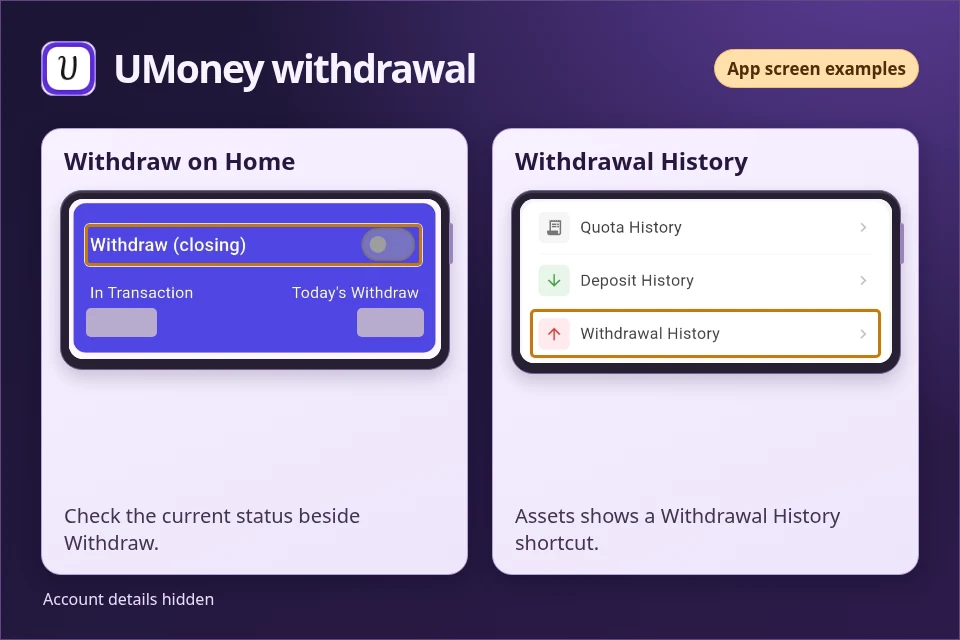
Find the withdrawal summary on Home
The supplied UMoney Home screenshot shows a card labelled Withdraw (closing). It displays In Transaction and Today’s Withdraw below the toggle. Use the current card in your own account to check the state and any options available to you.
Check the current instructions before proceeding
- Sign in through your verified app. See the login guide if you need access help.
- Read the withdrawal status on your Home card. If a withdrawal action is available, read the destination, amount and any limits, charges or verification requirements displayed by the app.
- Keep the reference for any withdrawal you submit through the in-app flow. If you expect the money to arrive in another account, compare that account’s credit and reference with the app record.
Review Withdrawal History
Open Assets and look for Withdrawal History. The supplied screenshot shows it alongside Quota History and Deposit History. Find the withdrawal by its amount, date and reference, and read the exact status shown. See the history guide to match the record to the right menu.
What to do when a withdrawal needs review
If the record appears unfinished or the expected credit is missing, note the amount, time, reference and in-app status. In Assets, open the Support Center entry if it is available. The support guide explains what information to prepare and which details to keep private.
What Withdraw (closing) and In Transaction show
These are the labels in the supplied Home screenshot. For an existing request, check Withdrawal History in Assets and match its reference, amount and date with your own record before treating it as complete.