 UMoney
Where to find Payment Pin
- Sign in to the UMoney app you use for your account.
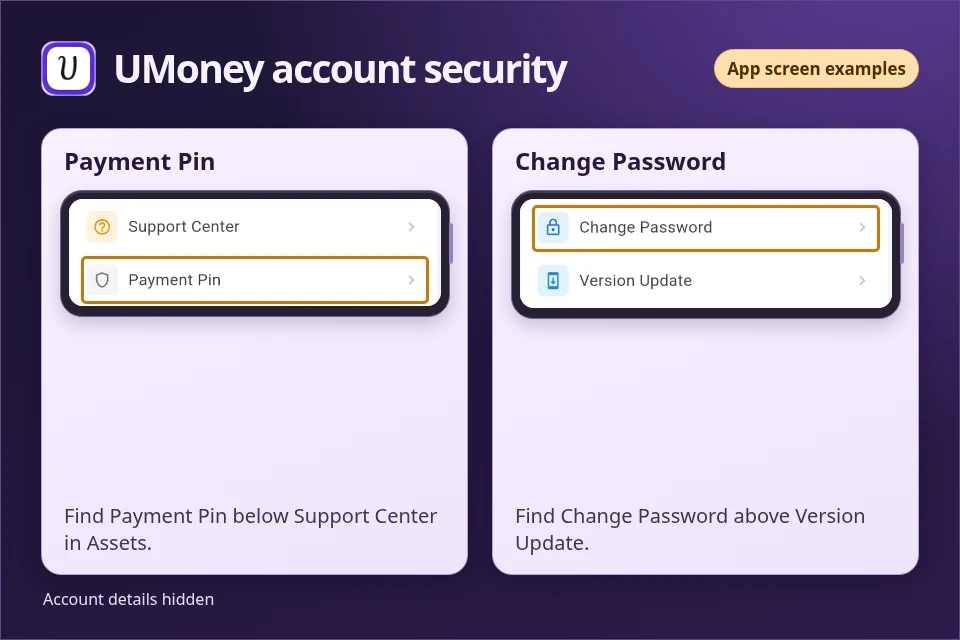
- Open the Assets tab. The supplied capture shows Support Center, Payment Pin and Change Password as separate entries.
- If you see Payment Pin, open it in the verified app and read the prompts it shows. The supplied capture identifies the entry. Use your current version to check the fields and available actions.
Choose the setting that matches the prompt
Check whether the screen asks for a payment PIN, a sign-in password or a one-time verification code. Use Payment Pin for the payment PIN instructions the app offers. For a password problem before sign-in or a password change inside Assets, read the password help guide.
What to check if you forgot your payment PIN
Look for any account recovery or help option within the current in-app flow. If the app asks for a PIN you no longer know, open Support Center from Assets if you can still reach it. Note the screen name and exact error. The support guide explains how to find account help.
Keep payment and verification details private
Enter sensitive details only in the verified app when you are completing an action you started. Keep payment PINs, passwords and one-time codes out of chats and screenshots. If the problem begins before you can open Assets, start with the UMoney login guide.